How to Create Custom Color Swatches in Photoshop Like a Pro
To create custom color swatches in Photoshop, open the Swatches panel via Window > Swatches, select your desired hue using the Color Picker, and click the plus icon at the bottom of the panel to save it into a custom folder. Keeping panels docked prevents interface clutter during editing sessions.
Opening and Managing the Swatches Panel
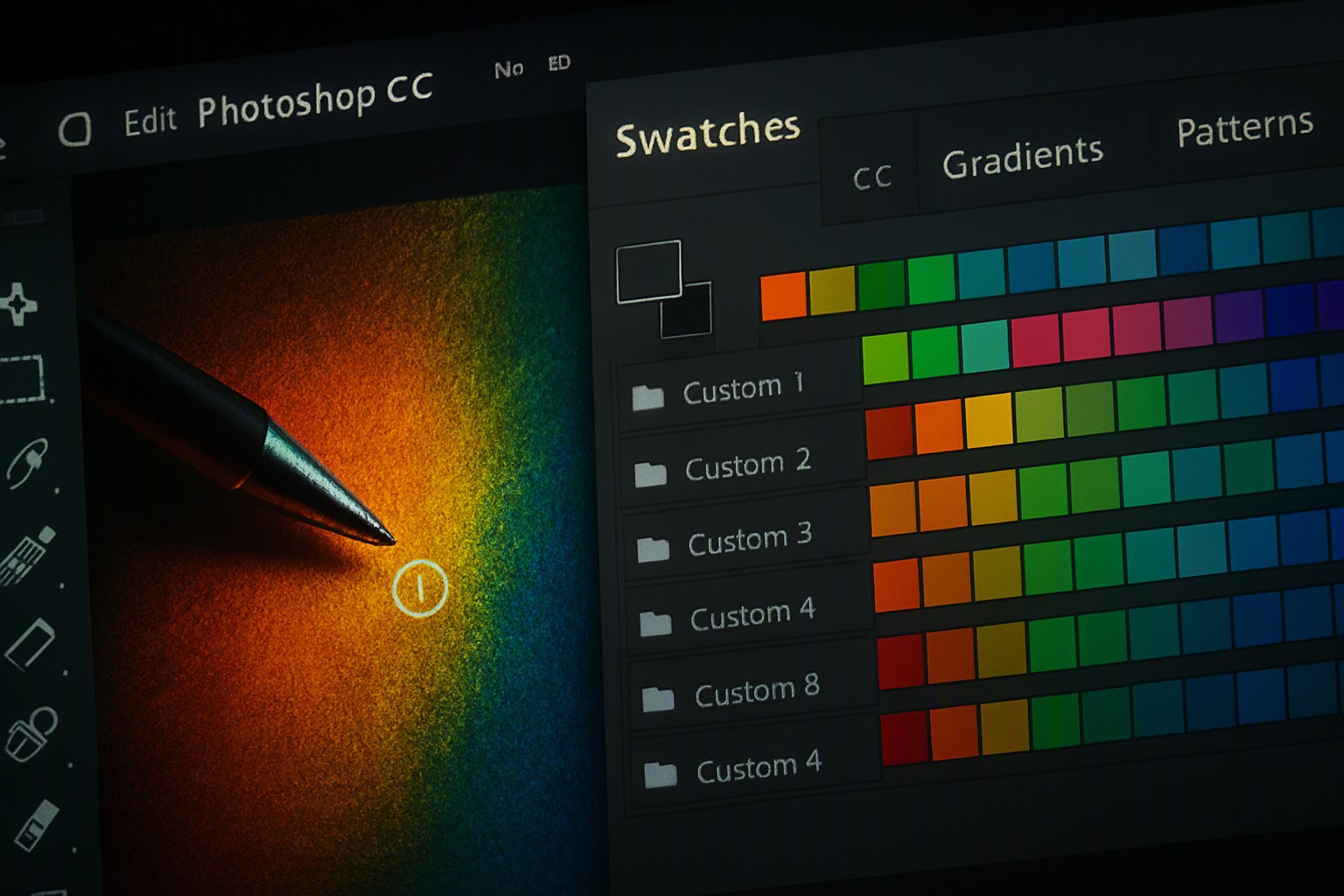
Go to Window > Swatches to open the main panel in Adobe Photoshop CC. When migrating assets, differentiate between legacy swatches and modern preset libraries. Legacy files use older .aco specifications, while modern versions integrate cloud libraries and color books.
If you need inspiration for web interfaces, you can explore how to choose best hex color picker chrome tools to extract accurate color codes before importing them into your desktop environment.
Picking and Saving a New Color
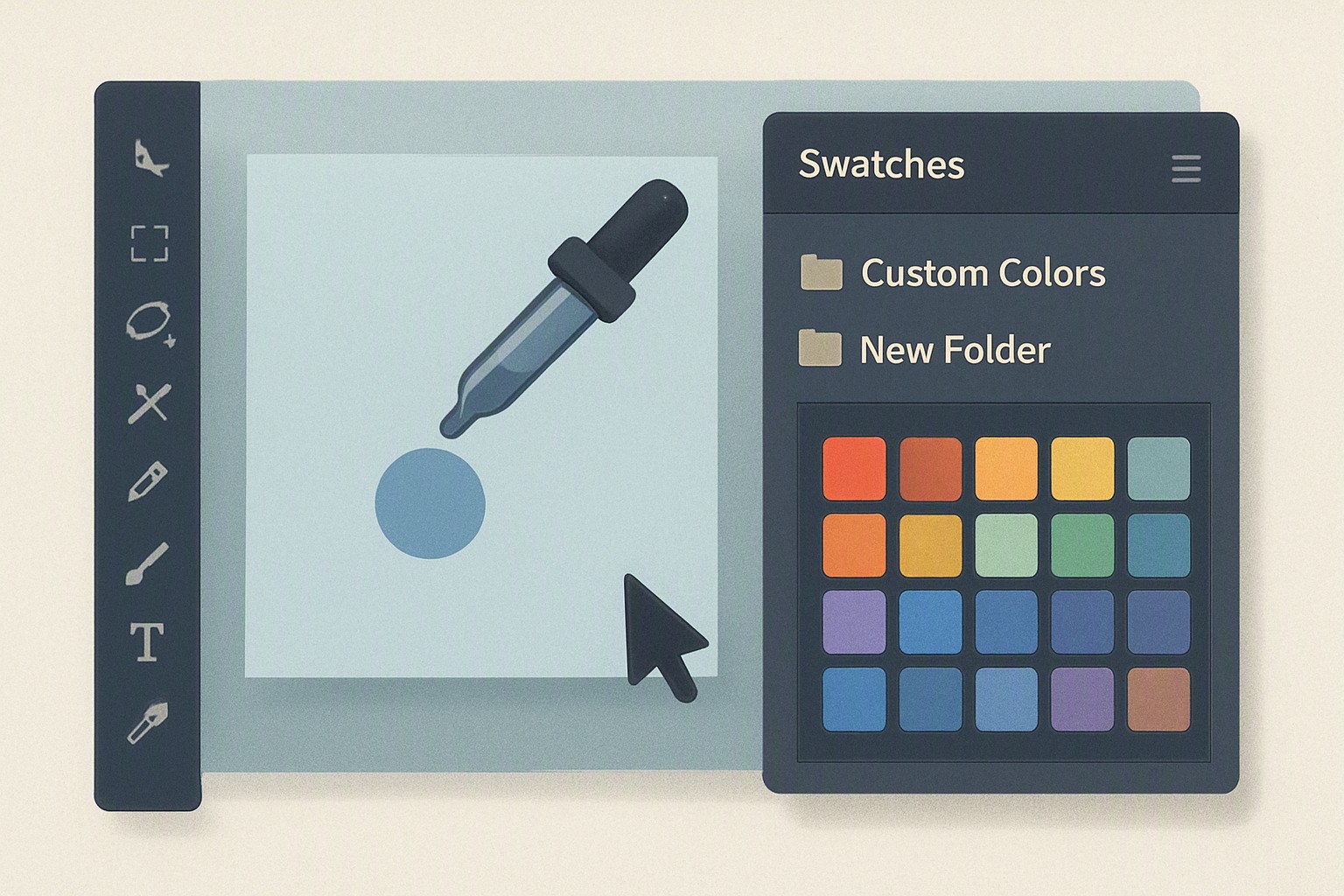
Use the Color Picker or Eyedropper tool to select a hue from your canvas or an external reference image. Click the 'Create New Swatch' icon at the bottom of the Swatches panel to add it to your active collection. Name your custom swatches descriptively to maintain organization across complex projects.
If you are extracting shades from reference photography, follow the techniques outlined in our guide on color generation to build cohesive themes automatically.
Solid Color Versus Book Color Swatches
Solid color swatches represent direct RGB, CMYK, or HSB values tailored to specific pixel arrays. Book color swatches tie into standardized ink matching systems.
| Swatch Type | Primary Use Case | Export Limitation | Standard System |
|---|---|---|---|
| Solid Color Swatches | Digital UI, web graphics, raster art | Fully compatible across Adobe apps | Custom RGB/CMYK |
| HSB/RGB Color Books | Brand identity, precise digital tuning | Restricted in certain legacy versions | Proprietary vendor books |
| Custom Group Folders | Project-specific design systems | Localized to .aco or .ase files | Internal team standards |
When designing physical merchandise, use standardized color matching systems like PANTONE rather than custom RGB builds, which shift depending on printer profiles. Older software builds occasionally drop proprietary book data when exporting custom libraries.
Organizing Swatches Into Functional Groups
Create a new color group folder inside the Swatches panel to bundle related shades. Drag and drop individual swatches into folders to separate primary UI elements from secondary accent tones. This structure supports the workflows you use when you build palettes using color for scalable digital products.
Exporting and Sharing Swatch Libraries
Select 'Export Swatches' from the panel menu to save your .aco or .ase files directly to your local drive. To load saved swatch files onto a different machine, open the target Swatches panel, select 'Import Swatches,' and locate your file. The Adobe Swatch Exchange (.ase) format preserves color names and group hierarchies across Illustrator, InDesign, and Photoshop without data loss.
Frequently asked questions
Can I load Illustrator swatches into Photoshop?
Yes. Load .ase and .aco files created in other Adobe apps directly into your Photoshop Swatches panel by clicking the panel menu, selecting 'Import Swatches,' and choosing your file.
What is the difference between .aco and .ase files?
The .aco format is the older Photoshop-specific swatch format. The .ase format stands for Adobe Swatch Exchange, which allows color sharing across Photoshop, Illustrator, and InDesign.
Why are some color swatch options greyed out?
Greyed-out options occur when your current document is set to an unsupported color mode, such as Bitmap or Duotone, instead of RGB or CMYK.


Comments
Post a Comment